Personal access tokens
Personal Access Tokens (PATs) are the easiest way to access the Text APIs.
A PAT acts like a password for the API. Instead of logging in through the interface, your script uses this token to authenticate requests. Once created, the token can be reused in your API calls, which makes it possible to run integrations and automation without any other logins.
For most integrations, a Personal Access Token is the simplest way to get started with the APIs.
When to use Personal Access Tokens
Use a Personal Access Token whenever you want to connect your own scripts, tools, or services to the Text APIs. This applies to most API use cases, for example:
- Automating tasks – run scripts that export reports, retrieve chats, or update settings automatically.
- Building internal tools – create dashboards or utilities that help your team work with Text data.
- Integrating with other systems – send data to spreadsheets, analytics platforms, databases, or internal applications.
- Testing and development – quickly authenticate requests while exploring APIs in tools like Postman or curl.
Personal Access Tokens can be used to authenticate requests to the following APIs:
- Agent Chat API (Web)
- Configuration API
- Reports API
- Global Accounts API
- HelpDesk API
- Customer Data Platform API
- Text API
How Personal Access Tokens work
A Personal Access Token always represents the account that created it. All API requests made with that token run using that account’s permissions.
For example, if a token was created by an admin account, requests made with that token will run with that account’s permissions, even if multiple users interact with the integration.
If your application needs to access the API on behalf of multiple users, use OAuth authorization instead. OAuth allows each user to authorize your application with their own account, so requests are executed using their identity and permissions.
Creating a Personal Access Token
- Open the Developer Console. Then, go to Settings > Authorization > Personal Access Tokens.
- Select the necessary scopes for your use case. Each API method requires specific scopes. You can find the required scopes in the method description for each API. Note that you won't be able to change those scopes after you create the token.
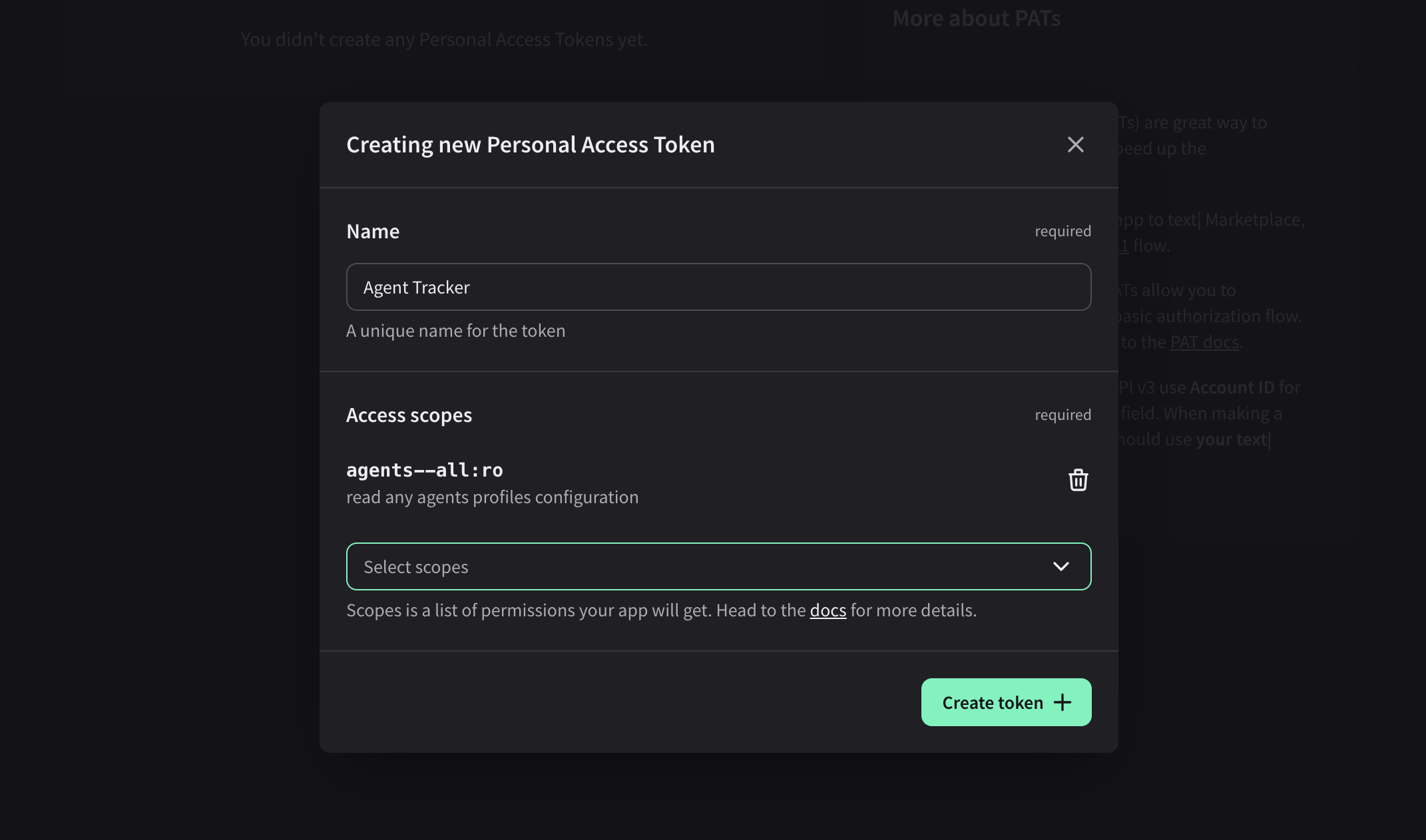
- Select Create token + After creating the token, copy the following values:
- the Personal Access Token
- your Account ID
- the Base64 encoded token
Treat all this data like your personal password. Do not expose it in any publicly available scripts.
Using the token in API requests
Personal Access Tokens use the Basic authentication scheme. Basic authentication requires a username and password. When using a Personal Access Token:
- Username is your Account ID
- Password is your Personal Access Token
When making a request in a tool like Postman, these two values are combined in the following format:
<account_id>:<personal_access_token>
Postman automatically converts this value into a Base64-encoded string and includes it in the Authorization header of your request.
If you’re making a request from another environment (for example using curl or a script), you need to encode the value yourself.
After creating your Personal Access Token in the Developer Console, you’ll also receive the Base64-encoded version of your Account ID and PAT, which you can use directly in the Authorization header:
-H 'Authorization: Basic <base64_encoded_token>'
Contact us
If you run into any issues, don't hesitate to chat with our support or contact us at developers@text.com.