OAuth authorization
Introduction
OAuth authorization lets your application access Text APIs on behalf of a user.
Instead of using a Personal Access Token tied to a single account, OAuth allows each user to authorize your application with their own account. Your app then receives an access_token that can be used to call the APIs using that user's identity and permissions.
OAuth is typically used when building applications that other users install or sign in to — for example integrations or services that need to access data from multiple accounts.
This page explains the OAuth flows supported by Text:
These flows can be used to obtain an access token for calling APIs on behalf of an agent (like the Agent Chat API or the Configuration API). To authorize calls to the Customer Chat API, use customer authorization.
Which OAuth flow to choose
The OAuth flow you choose depends on how your app works and where it runs.
| If you're building | Use this flow |
|---|---|
| a web app that needs to get an access token directly in the browser | Implicit grant |
| a server-side app that can securely store a Client Secret | Authorization code grant |
| a web app that needs a simple login flow | Sign in with LiveChat |
Use Implicit grant for browser-based apps that need to receive an access_token directly in the redirect URL.
Use Authorization code grant for server-side apps that can securely store a Client Secret. This flow also supports refreshing tokens without requiring the user to authorize again. If your frontend app needs to receive a code instead of an access_token, use Authorization code grant with PKCE.
Use Sign in with LiveChat to add a ready-to-use login flow to a web app using the Accounts SDK. It's the simplest way to sign users in and obtain basic account data or an access token.
OAuth configuration rules
Token limitations
There's a limit of 25 access tokens per client per user account. When the limit is reached, the oldest token is automatically revoked.
There's a limit of 25 refresh tokens per client per user account. When the limit is reached, the oldest token is automaticaly revoked.
There's a limit of 3 redirects in 30 seconds to the Livechat OAuth 2.1 server per client per user account. When the limit is reached, the server redirects to the error page with the
too_many_redirectserror details.
Redirect URIs
You can configure many comma-separated redirect URIs for your application. The redirect URI in the Authorization request is valid when it matches one of the URIs configured for your app (client) in Developer Console.
URIs are composed of several parts:
- scheme (
http://,https://) - is required and must match exactly. See examples 10 and 11 in the table below. - host (
google.pl,localhost:3000, ...) - a hostname or IP and an optional port; is required and must match exactly. See examples 7, 8, and 9 in the table below. - path (
/info,/test, ...) - the client redirect URI path must be a substring of the authorization request redirect path; path traversals are forbidden. Optional. See examples 2, 3, 4, 5, and 6 in the table below. - query (
?size=20, ...) - is forbidden. - fragment (
#paragraph) - is forbidden.
Examples:
Implicit grant
Implicit grant is an authorization flow recommended for JavaScript web apps, but it works for both types: JavaScript and server-side apps.
To set up your own web app, you must define the URL of the app and the list of scopes. Scopes determine which parts of a LiveChat user's account your app will have access to. A LiveChat customer who enters your app URL will be asked to enter their login and password and grant the access for your app. Then, the user is redirected to your app with access_token included in the URL.
There are a few steps in the process:
- Create an app in Developer Console and configure the Authorization building block.
- Redirect the users of your app to the LiveChat OAuth Server.
- Get an access token from the URL.
- Use the token in API calls.
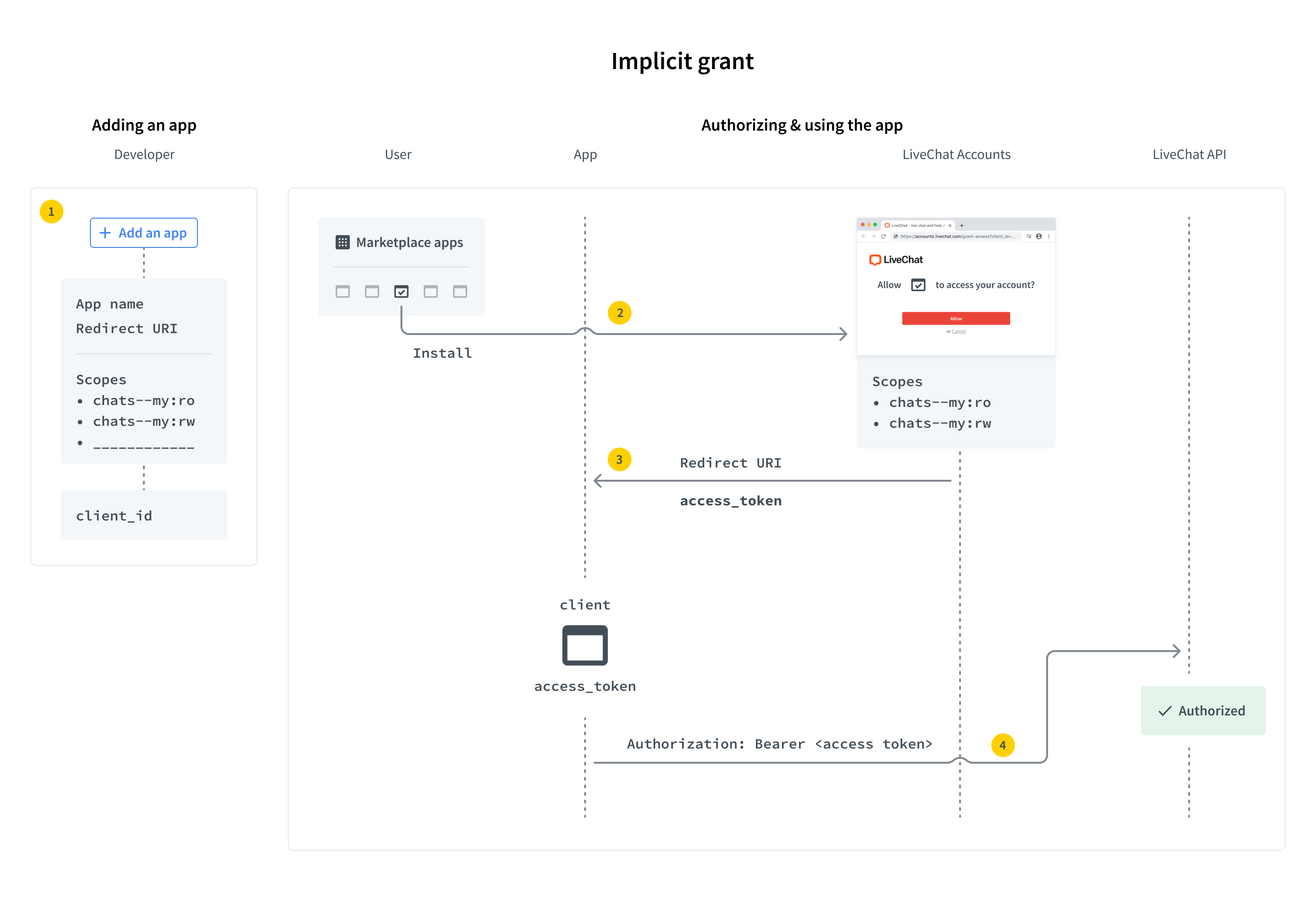
Implementing implicit grant
Step 1: Create an app
If you don't have an app yet, start by creating one in Developer Console. The app is a LiveChat OAuth 2.1 Client with its Id and Secret.
Configure the Authorization building block with:
- Client Id - your app's public identifier
- Redirect URI whitelist - where users will be redirected after authorization
- Access scopes - permissions your app needs
Since this is the Implicit grant flow, you won't use the Client Secret.
Step 2: Redirect users to LiveChat OAuth Server
When users run your app, they should be redirected to the LiveChat OAuth Server, which can be found under this URL:
LIVECHAT OAUTH SERVER URLhttps:/
Request
| Parameter | Required | Description |
|---|---|---|
response_type | yes | Value: token |
client_id | yes | Client Id from Developer Console (Authorization block) |
redirect_uri | yes | One of the URIs defined in the Authorization block during app configuration. The LiveChat OAuth Server will redirect the user back to this URI after successful authorization. |
state | no | Any value that might be useful to your application. It's strongly recommended to include an anti-forgery token to mitigate the cross-site request forgery. |
prompt | no | Value: consent. For testing purposes. It forces the app to ask for access to certain resources. It’s necessary for you to test the app as if you were a user who installs the app from Marketplace. |
EXAMPLE REDIRECTION TO LIVECHAT OAUTH SERVERhttps://accounts.livechat.com/
?response_type=token
&client_id=9cbf3a968289727cb3cdfe83ab1d9836
&redirect_uri=https%3A%2F%2Fmy-application.com
&state=i8XNjC4b8KVok4uw5RftR38Wgp2BFwql
At this point, the app should ask the user to allow it to access certain resources and perform certain actions. The list of resources and actions is automatically created based on the scopes selected for your app in Developer Console.
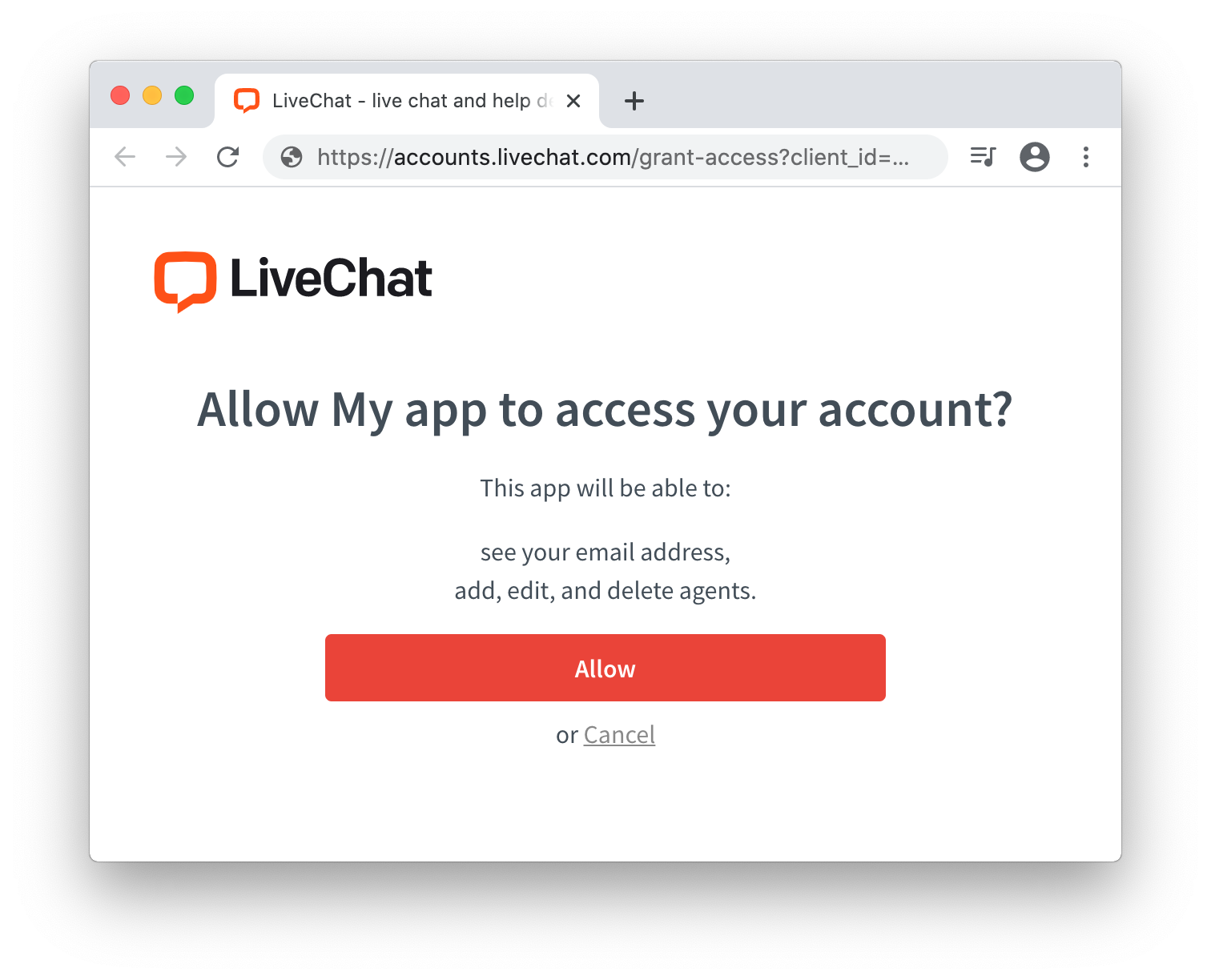
Keep in mind that as the app author, you won't see this screen. Use prompt:consent to verify this step from the user perspective.
This step is also omitted for private web apps installed by Agents from the same license.
Step 3: Get an access token from the URL
After a user authorizes the app by clicking Allow, they are redirected back to your application (to the Redirect URI you specified in Developer Console). The URL includes a number of parameters, including the access_token.
Response
| Parameter | Description |
|---|---|
access_token | The token you can use to call LiveChat APIs on behalf of the user. |
expires_in | The number of seconds the access_token will be valid; 28800 sec by default. When it expires, you will need to repeat the authorization process to get the new access_token. |
token_type | Value: Bearer |
state | The value of the state param that you passed to LiveChat OAuth Server in redirection. |
EXAMPLE REDIRECTION BACK TO THE APPhttps://my-application.com/
#access_token=dal%3Atest_DQTRHGbZCFkAoss4Q
&token_type=Bearer
&expires_in=28800
&state=i8XNjC4b8KVok4uw5RftR38Wgp2BFwql
Step 4: Use the token in API calls
Once you extract the token from the URL, your app can use it to sign requests to the LiveChat API.
Your application should store the access_token in localStorage or a cookie until it expires. Caching the token prevents you from redirecting the user to LiveChat OAuth Server every time they visit your app.
Code example
This sample web app makes a call to Agent Chat API to return the list of customers, which is then logged in the console. The application uses the Implicit grant to get an access token.
index.html<!DOCTYPE html>
<html>
<body>
<script src="/get_customers.js"></script>
<script>
function getHashParam(key) {
var params = location.hash.substring(1).split("&");
var value = params.find(function (item) {
return item.split("=")[0] === key;
});
return value ? value.split("=")[1] : "";
}
const clientId = "bb9e5b2f1ab480e4a715977b7b1b4279"; // Client Id of your app
const redirectUri = "https://get-customers-app.samplehosting.com/"; // URL of your app
const accessToken = decodeURIComponent(getHashParam("access_token"));
if (accessToken) {
get_customers();
} else {
location.href =
"https://accounts.livechat.com/" +
"?response_type=token" +
"&client_id=" +
clientId +
"&redirect_uri=" +
redirectUri;
}
</script>
</body>
</html>
get_customers.jsconst get_customers = () => {
fetch('https://api.livechatinc.com/v3.1/agent/action/get_customers', {
method: 'post',
headers: {
'Content-type': 'application/json',
'Authorization': 'Bearer ' + accessToken,
},
body: JSON.stringify({})
})
.then((response) => response.json())
.then((data) => {
console.log('Request succeeded with JSON response', data);
})
.catch((error) => {
console.log('Request failed', error);
});
}
To make it work, run this app on localhost or deploy it to Firebase to host it. Update index.html with your own redirectUri (link to your app) and clientId.
Make sure to use the exact same Redirect URI in Developer Console. Also, to use the Get Customers method, your app needs the customers:ro scope, which you should select in Developer Console.
When everything is ready, install the app privately for your license.
Authorization code grant
Authorization code grant flow is recommended for server-side apps. Unlike web apps, they can store confidential info, such as Client Secret, on a server without ever exposing it.
When a user runs your app, they are redirected to the LiveChat OAuth Server. After successful authorization, the user is redirected back to your app with a single-use authorization code. Your application then exchanges the code for an access token and refresh token using the Client Secret. From this point, the app can regenerate new access tokens without any action from the user.
The steps are as follows:
- Create and configure your app
- Redirect users to LiveChat OAuth Server
- Acquire the code
- Exchange code for access token and refresh token
- Use the token in API calls
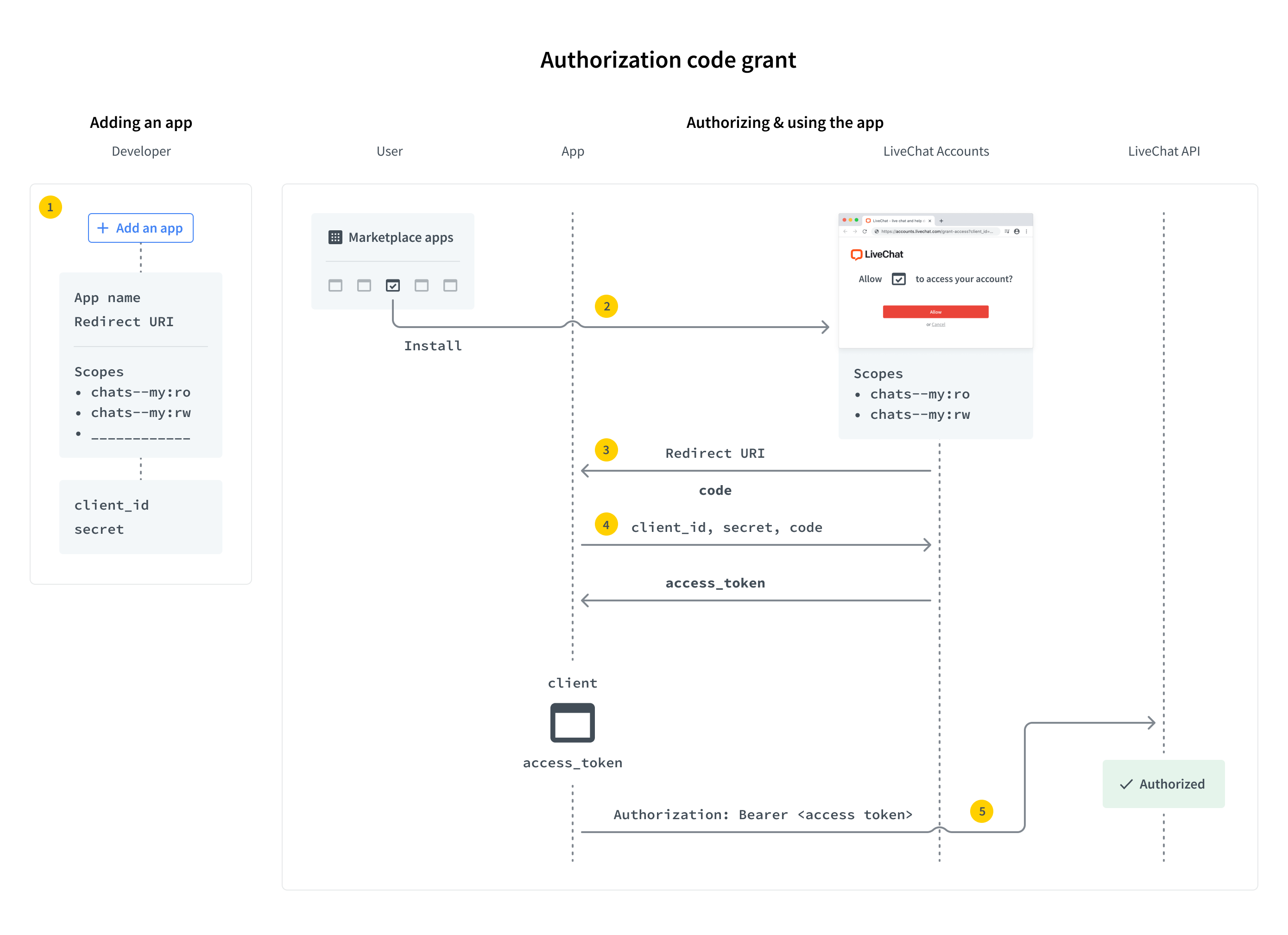
PKCE extension
OAuth 2.1 introduces the PKCE (Proof Key for Code Exchange) extension for the Authorization code grant flow.
It allows web applications to use the Authorization code grant flow, and also, enables the possibility to use custom schema redirects, like: my_app: // (especially useful with native applications).
The Authorization code grant flow with PKCE is recommended for both web apps and server-side apps. Since web app clients can't store Client Secrets securely, their Authorization code grant flow with PKCE differs from the one for server-side apps.
- Web apps - Client Secret cannot be used, so it's not mandatory; refresh tokens rotate.
- Server-side apps - Client Secret is mandatory to exchange a code for an access token and to refresh a token; refresh tokens don't rotate.
How does the Authorization code grant flow work with PKCE?
- The client generates
code_verifierfrom the following characters:[A-Z] / [a-z] / [0-9] / "-" / "." / "_" / "~". It's between 43 and 128 characters long. - The client generates
code_challengewithcode_challenge_methodas follows:plain-code_challenge=code_verifier, when nocode_challenge_methodis present, thenplainis assumed.S256-code_challenge=b64(s256(ascii(code_verifier)))whereb64is Base64 URL encoding ands256is theSHA256hash function.
- The client sends
code_challengein the authorization request. - The server responds with the code.
- The client sends
code_verifierduring the exchane of the for an access token. - The server performs an additional validation for
code_challengeandcode_verifier. Upon successful validation, it returns the access token.
💡 To see code samples with PKCE parameters, use the dropdown list.
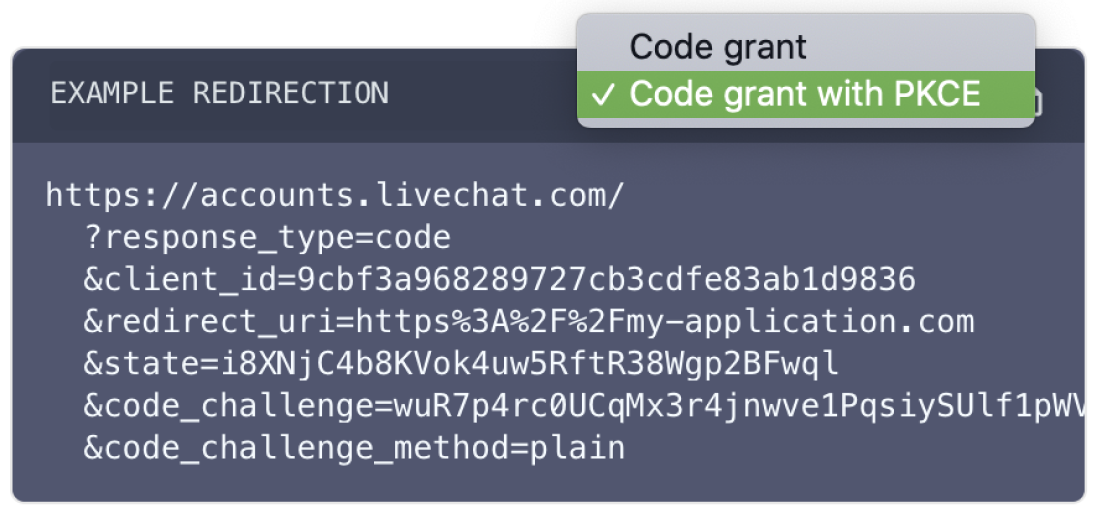
Implementing authorization code grant
Step 1: Create and configure your app
Create a server-side application in Developer Console. Your app will have a Client Id and Client Secret, which you'll use in the authorization flow.
In the Authorization building block, configure:
- Client Id - your app's public identifier
- Client Secret - confidential identifier (copy and store it securely; it won't be visible after you refresh the page)
- Redirect URI whitelist - the address where users will be redirected after authorization. Only this URI can receive the code or token.
- Access scopes - select the scopes your app needs (e.g.,
chats--all:roto list chats)
Make sure you're creating a server-side app, not a JavaScript app, as you'll need to use the Client Secret securely.
Step 2: Redirect users to LiveChat OAuth Server
When users run your app, they should be redirected to the LiveChat OAuth Server, which can be found under this URL:
EXAMPLE REDIRECTION TO LIVECHAT OAUTH SERVERhttps:/
Request
| Parameter | Required | Required with PKCE | Description |
|---|---|---|---|
response_type | yes | yes | Value: code |
client_id | yes | yes | Client Id from Developer Console (Authorization block) |
redirect_uri | yes | yes | redirect_uri should be the same as Direct installation URL defined in the Authorization block during app configuration. The LiveChat OAuth Server will redirect the user back to this URI after successful authorization. |
state | no | no | Any value that might be useful to your application. It's strongly recommended to include an anti-forgery token to mitigate the cross-site request forgery. |
code_challenge | no | yes | A string between 43 and 128 characters long. |
code_challenge_method | - | no | Possible values: s256 or plain; default: plain. |
EXAMPLE REDIRECTIONhttps://accounts.livechat.com/
?response_type=code
&client_id=9cbf3a968289727cb3cdfe83ab1d9836
&redirect_uri=https%3A%2F%2Fmy-application.com
&state=i8XNjC4b8KVok4uw5RftR38Wgp2BFwql
At this point, the app should ask the user to allow it to access certain resources and perform certain actions. The list of resources and actions is automatically created based on the scopes selected for your app in Developer Console.
Keep in mind that as the app author, you won't see this screen. Use prompt:consent to verify this step from the user perspective.
This step is also omitted for private server-side apps installed by Agents from the same license.
Step 3: Acquire the code
After a user authorizes the app by clicking Allow, they are redirected back to your application (to the Redirect URI you specified in Developer Console). The URL includes parameters, including the code.
Request
| Parameter | Notes |
|---|---|
code | A single-use code you need to exchange it for an access token. It's only valid for a few minutes. |
state | The value of the state param that you passed to LiveChat OAuth Server in redirection. |
EXAMPLE REDIRECTION BACK TO THE APPhttps://my-application.com/
?code=test_7W91a-oMsCeLvIaQm6bTrgtp7
&state=i8XNjC4b8KVok4uw5RftR38Wgp2BFwql
Step 4: Exchange code for access token and refresh token
To exchange the code for an access_token and a refresh_token, you need to make an HTTP POST request to the following URL:
https://accounts.livechat.com/v2/token
Request
| Parameter | Required | Required with PKCE server side app | Required with PKCE javascript app | Description |
|---|---|---|---|---|
grant_type | yes | yes | yes | Value: authorization_code |
code | yes | yes | yes | The authorization code returned from the request in the previous step. |
client_id | yes | yes | yes | Client Id from Developer Console (Authorization block) |
client_secret | yes | yes | no | Unique, confidential identifier of your app from Developer Console (Authorization block). |
redirect_uri | yes | yes | yes | The URI defined in Step 2. The LiveChat OAuth Server will redirect the user back to this URL after successful authorization. |
code_verifier | no | yes | yes | The previously generated code_verifier. |
Response
The response is a JSON with the following parameters:
| Parameter | Description |
|---|---|
access_token | A token you can use to call LiveChat APIs on behalf of the user. |
account_id | The ID of the agent's account |
expires_in | A number in seconds specifying how long the access_token will be valid; 28800 sec by default. When it expires, you will need to generate a new access_token using refresh_token (read Using the refresh token for more details). |
organization_id | The ID of the organization's account. |
refresh_token | A token that can be used to generate new access tokens. |
scope | A comma-separated list of permissions an access_token has. |
token_type | Value: Bearer |
EXCHANGE CODE FOR TOKENcurl "https://accounts.livechat.com/v2/token" \
-X POST \
-d "grant_type=authorization_code&\
code=dal:test_tnlRmy73mg9eaFESA&\
client_id=9cbf3a968289727cb3cdfe83ab1d9836&\
client_secret=test_d7MEp1YYo3&\
redirect_uri=https://my-application.com"
{
  "access_token": "dal:test_YTJQ6GDVgQf8kQDPw",
  "account_id": "b7eff798-f8df-4364-8059-649c35c9ed0c",
  "expires_in": 28800,
  "organization_id": "390e44e6-f1e6-0368c-z6ddb-74g14508c2ex",
  "refresh_token": "test_gfalskcakg2347o8326",
  "scope": "chats--all:ro,chats--all:rw",
  "token_type": "Bearer"
}
💡 Note: Refresh tokens no longer include the dal: or fra: prefixes.
Step 5: Use the token in API calls
Once you have the access_token, your app can use it to authorize requests to LiveChat APIs. Store the token securely until it expires. Caching the token prevents unnecessary redirects to the LiveChat OAuth Server.
Practical example: Listing chats
Let's walk through a complete example. We'll use the List Chats method from the Agent Chat API.
Before you start
Make sure you have:
- A LiveChat Owner or Admin account (sign up for free)
- A server-side application in Developer Console
- The
chats--all:roscope selected in your app - A tool to send requests (Postman, cURL, etc.)
1. Get your code
Paste your Client Id and Redirect URI in this request format, then open it in your browser while logged into LiveChat:
https://accounts.livechat.com/
  ?response_type=code
  &client_id=<YOUR_CLIENT_ID>
  &redirect_uri=<YOUR_REDIRECT_URI>
After authorization, you'll be redirected to your Redirect URI with a code parameter:
https://www.example.com/?code=dal%3Ak0FTiZgtBkTLnzXlatwt6Fgvpp4&state=
If the code contains %3A, replace it with : (colon). Example: dal:k0FTiZgtBkTLnzXlatwt6Fgvpp4
2. Exchange code for token
Use cURL or Postman to exchange the code for an access token:
curl "https://accounts.livechat.com/v2/token" \
  -X POST \
  -d "grant_type=authorization_code&\
  code=<YOUR_CODE>&\
  client_id=<YOUR_CLIENT_ID>&\
  client_secret=<YOUR_CLIENT_SECRET>&\
  redirect_uri=<YOUR_REDIRECT_URI>"
You'll receive a response with access_token, refresh_token, and other details.
3. Call the API
Use the access token to call the List Chats method. Copy the request from the API documentation and replace <your_access_token> with your actual token.
💡 Tip: Find all requests in our Postman collection.
Using the refresh token
When an access_token expires, your app needs to acquire a new one. To do that, it has to send an HTTP POST request using the refresh_token.
https:/v2/token
Request
| Parameter | Required | Required with PKCE server side app | Required with PKCE javascript app | Description |
|---|---|---|---|---|
grant_type | yes | yes | yes | Value: refresh_token |
refresh_token | yes | yes | yes | The refresh token returned from when exchanging the code. |
client_id | yes | yes | yes | Client Id from Developer Console (Authorization block) |
client_secret | yes | yes | no | Unique, confidential identifier of your app from Developer Console (Authorization block). |
Response
The response is a JSON with the following parameters:
| Parameter | Description |
|---|---|
access_token | A token you can use to call LiveChat APIs on behalf of the user. |
account_id | The ID of the agent's account |
expires_in | A number in seconds specifying how long the access_token will be valid. When it expires, you will need to generate a new access_token using refresh_token (read Using the refresh token for more details). |
organization_id | the ID of the organization's account. |
scope | A comma-separated list of permissions an access_token has. |
refresh_token | A token that can be used to generate new access tokens. |
token_type | Value: Bearer |
GET A NEW ACCESS TOKENcurl "https://accounts.livechat.com/v2/token" \
-X POST \
-d "grant_type=refresh_token&\
refresh_token=test_gfalskcakg2347o8326&\
client_id=9cbf3a968289727cb3cdfe83ab1d9836&\
client_secret=test_d7MEp1YYo3"
{
  "access_token": "dal:test_YTJQ6GDVgQf8kQDPw",
  "account_id": "b7eff798-f8df-4364-8059-649c35c9ed0c",
  "expires_in": 28800,
  "organization_id": "390e44e6-f1e6-0368c-z6ddb-74g14508c2ex",
  "scope": "chats--all:ro,chats--all:rw",
  "refresh_token": "test_gfalskcakg2347o8326",
  "token_type": "Bearer"
}
💡 Note: Refresh tokens no longer include the dal: or fra: prefixes.
Revoking tokens
In some cases, a user may wish to revoke the access (the token) given to your application. The token can be either an access token or a refresh token. If it's an access token with a corresponding refresh token, both tokens will be revoked. To revoke a token, make a DELETE HTTP request to the following URL:
https:/v2/token
Code snippets present two alternative ways of making the same request.
Request
| Parameter | Required | Description |
|---|---|---|
code | yes | The value of the access_token or the refresh_token to revoke |
REVOKE A TOKENcurl "https://accounts.livechat.com/v2/token"
-H "Authorization: Bearer <access_token|refresh token>"
-X DELETE
{}
Validating the access token
You can validate an access_token by making a GET HTTP request to the following URL:
https:/v2/info
Please note that refresh tokens are not supported for direct validation. If an access token was obtained using a refresh token, the response will return both tokens.
Response
The response is a JSON with the following parameters:
| Parameter | Description |
|---|---|
access_token | A token you can use to call LiveChat APIs on behalf of the user. |
account_id | The ID of the agent's account |
client_id | Client Id of your app |
expires_in | A number in seconds specifying how long the access_token will be valid. When it expires, you will need to generate a new access_token using refresh_token (read Using the refresh token for more details). |
organization_id | The ID of the organization's account. |
scope | A comma-separated list of permissions an access_token has. |
refresh_token | A token that can be used to generate new access tokens. Returned optionally. |
token_type | Value: Bearer |
VALIDATE AN ACCESS TOKENcurl "https://accounts.livechat.com/v2/info"
-H "Authorization: Bearer <access_token>"
{
    "access_token": "dal:test_YTJQ6GDVgQf8kQDPw",
    "account_id": "bbe8b147-d60e-46ac-a1e5-1e94b11ea6e1",
    "client_id": "9cbf3a968289727cb3cdfe83ab1d9836",
    "expires_in": 28725,
    "organization_id": "390e44e6-f1e6-0368c-z6ddb-74g14508c2ex",
    "scope": "chats--all:ro,chats--all:rw",
    "token_type": "Bearer"
}
Sign in with LiveChat
The Sign in with LiveChat flow is the easiest way to get access to basic information in Text accounts. It allows you to quickly build an app that can access that info through Accounts SDK.
The Sign in with LiveChat flow lets you:
- Get access to the LiveChat user's email, account ID, or organization ID.
- Receive an
access_tokenthat can be used to perform API calls. - Receive a
codeusing the PKCE extension, which could be then used to obtain the account'srefresh_tokenandaccess_token.
Make sure you test your integration on the LiveChat mobile app, which requires Accounts SDK v2.0.1 or higher. Consider migrating if you use an older version of the SDK.
User flow
Users start the flow by clicking the Sign in with LiveChat button. If a user is not signed in to LiveChat, they'll be asked to do that.
Then, the user must give the app access to the specified parts of their LiveChat account:
Finally, the app receives an access_token that allows it to perform different API calls, limited to what the user agreed to in the prompt.
For example, you can display the LiveChat tracking code which already includes the user's account license number:
TRACKING CODE<!-- Start of LiveChat (www.livechat.com) code -->
<script>
window.__lc = window.__lc || {};
window.__lc.license = 11069052;
;(function(n,t,c){function i(n){return e._h?e._h.apply(null,n):e._q.push(n)}var e={_q:[],_h:null,_v:"2.0",on:function(){i(["on",c.call(arguments)])},once:function(){i(["once",c.call(arguments)])},off:function(){i(["off",c.call(arguments)])},get:function(){if(!e._h)throw new Error("[LiveChatWidget] You can't use getters before load.");return i(["get",c.call(arguments)])},call:function(){i(["call",c.call(arguments)])},init:function(){var n=t.createElement("script");n.async=!0,n.type="text/javascript",n.src="https://cdn.livechatinc.com/tracking.js",t.head.appendChild(n)}};!n.__lc.asyncInit&&e.init(),n.LiveChatWidget=n.LiveChatWidget||e}(window,document,[].slice))
</script>
<noscript><a href="https://www.livechat.com/chat-with/11069052/" rel="nofollow">Chat with us</a>, powered by <a href="https://www.livechat.com/?welcome" rel="noopener nofollow" target="_blank">LiveChat</a></noscript>
<!-- End of LiveChat code -->
Implementing Sign in with LiveChat
Step 1: Create a new app
Create a new LiveChat OAuth 2.1 Client app in Developer Console. You will receive a new client_id that can be used in the next steps.
Please note that Redirect URI field must match the URL of the website that has the Sign in with LiveChat button installed. The button will not work with any other URL addresses.
Step 2: Include the SDK library
You can install the SDK from NPM.
NPM module
NPM module installationnpm install --save @livechat/accounts-sdk@^2.0.0
NPM module importimport AccountsSDK from '@livechat/accounts-sdk';
If you build an app using Webpack, you can just import the AccountsSDK module from NPM.
Step 3: Prepare button container
Prepare the login button, which will invoke the authorization flow when a user clicks it.
<div id="login-button" style="background: url(.../livechat_sign_in.png)"></div>
Prepare the button container// javascript
const instance = new AccountsSDK({
client_id: '<your_app_client_id>',
redirect_uri: '<your_app_redirect_uri>'
});
document.getElementById('login-button').onclick = (e) => {
if (e && e.preventDefault) {
e.preventDefault();
}
instance.popup().authorize().then((authorizeData)=>{
const transaction = instance.verify(authorizeData);
if (transaction != null) {
// authorization success
// authorizeData contains `accessToken` or `code`
// transaction contains state and optional code_verifier (code + PKCE)
console.log("User access token: " + transaction.accessToken)
document.getElementById('login-button').style.display = "none"
} else {
console.log("Redirect state doesn't match the previous one")
}
}).catch((e)=>{
console.error("Failed to authorize user", e)
})
};
During the creation of the Sign in LiveChat button, you can use LiveChat Designs.
Don't forget to test the give consent step. Use prompt: "consent" to force the app to ask you for access to certain resources. It’s necessary for you to test the app as if you were a user who installs the app from Marketplace.
Accounts SDK
Following classes and methods are available in the Accounts SDK:
| Class | Methods |
|---|---|
AccountsSDK | popup() redirect() authorizeURL() verify() |
Popup | authorize() |
Redirect | authorize() authorizeData() |
AccountsSDK
The main instance of the SDK used to authorize users in LiveChat Accounts.
Example class creationconst instance = new AccountsSDK({
client_id: '<your_app_client_id>'
});
The constructor accepts an options object with the following properties:
| Property | Required | Data type | Description |
|---|---|---|---|
client_id | yes | string | Application Client Id (can be found in Developer Console) |
prompt | no | string | Use consent to force the consent prompt in a popup and the redirect flows. (See the warning.). Default: '' |
response_type | no | string | OAuth response type. Possible values: token or code. Default: token |
popup_flow | no | string | auto – close the popup automatically if the user is already logged in; manual - always show the popup that requires the user to provide their credentials; default: auto |
state | no | string | OAuth state parameter. Use it for better security. |
verify_state | no | bool | Check if state matches after the redirect; default: true |
scope | no | string | The scopes your application will request from the user; if not provided, then all application scopes will be requested. It must be configured for a given client id, a comma-separated string, default: null |
redirect_uri | yes | string | OAuth redirect URI; default: the current location |
email_hint | no | bool | Fill in email in forms |
server_url | no | string | Authorization server URL |
tracking | no | object | Object with tracking query string params |
transaction1 | no | object | An object with options for the transaction manager |
pkce2 | no | object | An object with the PKCE configuration |
1) The transaction object consists of the following parameters:
| Property | Required | Data type | Description |
|---|---|---|---|
namespace | no | string | Transaction key prefix; default: 'com.livechat.accounts' |
key_length | no | string | Transaction random state length; default: 32 |
force_local_storage | no | bool | Try to use localStorage instead of cookies; default: false |
💡 You need to use the PKCE extension if your JavaScript application will try to acquire the authorization code in order to exchange it for tokens.
2) In the pkce object, define the following configuration properties:
| Property | Required | Data type | Description |
|---|---|---|---|
enabled | yes | bool | Enable OAuth 2.1 PKCE extension; default: true |
code_verifier | no | string | Override the auto-generated code verifier. |
code_verifier_length | no | integer | Define the length of the code verifier. It should be between 43 and 128 characters; default: 128. Read more... |
code_challange_method | no | string | Define the code challenge method. Possible values: S256 or plain; default: S256 |
popup
Returns a Popup object instance built on top of sdk.
| Parameter | Data type | Description |
|---|---|---|
options | object | An object with the same parameters as provided in AccountsSDK |
popup(options={}) const popup = instance.popup({
client_id: '<your_app_client_id>'
});
redirect
Returns a Redirect object instance built on top of sdk.
| Parameter | Data type | Description |
|---|---|---|
options | object | An object with the same parameters as provided in AccountsSDK |
redirect(options={}) const redirect = instance.redirect({
client_id: '<your_app_client_id>'
});
authorizeURL
Creates an authorization URL for the given flow and parameters.
| Parameter | Data type | Description |
|---|---|---|
options | object | An object with the same parameters as provided in AccountsSDK |
flow | string | code or token. code can only be used with the PKCE flow |
authorizeURL(options={},flow) const authURL = instance.authorizeURL({
client_id: '<your_app_client_id>'
}, "token");
verify
Verifies if the state parameter from the redirect matched the one provided upon initialization, If it does, the method returns Transaction, which is used under the hood for state verification. Otherwise, it returns null.
In all methods of the AccountsSDK object, the options objects is used to overwrite the data provided upon initialization.
| Parameter | Data type | Description |
|---|---|---|
authorizeData | object | Data returned from the redirect |
verify(authorizeData) const transactionData = instance.verify(authorizeData);
if (transactionData) {
console.log("Verified correctly");
} else {
console.log("Url/state mismatch");
}
Popup
A class responsible for acquiring the user authorization data through a popup window.
| Parameter | Data type | Description |
|---|---|---|
options | object | An object with the same parameters as provided in AccountsSDK |
sdk | object | An sdk instance |
constructor(sdk, options)const instance = new AccountsSDK({
client_id: '<your_app_client_id>'
});
const popup = new Popup(instance, instance.options);
A popup object instance could be also created via sdk with:
const popup = instance.popup();
authorize
Returns a promise that resolves with the user authorization data or an error.
authorize() popup.authorize().then((authorizeData) => {
console.log("authorize data acquired: " + authorizeData);
}).catch(e => {
console.error("Failed to acquire authorization data: " + e);
});
Sample app with the popup flow
The Sample app with the popup flow has a fully implemented authorization flow. You can test it, experiment with it, or modify its code and extend its functionality.
Redirect
A class responsible for acquiring the user authorization data through the redirect method.
| Parameter | Data type | Description |
|---|---|---|
options | object | An object with the same parameters as provided in AccountsSDK |
sdk | object | An sdk instance |
constructor(sdk, options)const instance = new AccountsSDK({
client_id: '<your_app_client_id>'
});
const redirect = new Redirect(instance, instance.options);
A redirect object instance could be also created via sdk with:
redirect()const redirect = instance.redirect();
authorize
Starts the redirect authorization flow.
authorize() redirect.authorize();
authorizeData
Checks if a user was redirected to the current origin with the authorization data. It returns a promise that resolves with the user authorization data or with an error.
authorizeData() redirect.authorizeData().then((authorizeData) => {
console.log("Authorization data acquired: " + authorizeData);
}).catch(e => {
console.error("Failed to acquire authorization data: " + e);
redirect.authorize(); // Try to redirect user to authorization once more
});
Sample app with the redirect flow
The Sample app with the redirect flow has a fully implemented authorization flow. You can test it, experiment with it, or modify its code and extend its functionality.
PKCE support in Accounts SDK
In order to acquire both access_token and refresh_token by a frontend application, you should use the PKCE Extension, which prevents the usage of a hijacked redirect by malicious apps.
- Start by enabling PKCE. To do so, provide
AccountsSDKinstance with PKCE options.
Enable PKCE const instance = new AccountsSDK({
client_id: '<your_app_client_id>',
redirect_uri: '<your_app_redirect_uri>',
response_type: "code",
pkce: {
enabled: true
}
});
- Then, using the
redirectflow, you're able to receive thecodeauthorization data:
Receive authorization code data instance.redirect().authorizeData().then((authorizeData) => {
const transactionData = instance.verify(authorizeData);
if (transactionData === null) {
console.log("Failed to verify authorization data");
return;
}
fetch(instance.options.server_url + "/v2/token", {
headers: {
'Accept': 'application/json',
'Content-Type': 'application/json'
},
method: "POST",
body: JSON.stringify({
grant_type: "authorization_code",
code: authorizeData.code,
client_id: transactionData.client_id,
redirect_uri: transactionData.redirect_uri,
code_verifier: transactionData.code_verifier,
})
})
.then((res) => { res.json()}).then((data) => {console.log("User tokens: " + data)})
.catch((e) => { console.log("Failed to exchange code: " + e) })
}).catch(e => {
// As we don't have any authorization data, then we can try o authorize user
const wasRedirected = sessionStorage.getItem('lc_accounts');
if (wasRedirected === "yes") {
console.error("Couldn't authorize user: " + e);
return
}
sessionStorage.setItem('lc_accounts', yes);
instance.redirect().authorize(); // Initiate authorization redirect flow
})
Response format
All authorize methods return the user authorization data when resolving with success, or return an error when something goes wrong.
Success
For successful user authorization processes, the returned data will consists of the following elements:
| Field | Returned | Description |
|---|---|---|
access_token | only for response_type: token | Used for authorizing LiveChat API calls. |
code | only for response_type: code | Must be exchanged for access_token and refresh_token |
scope | for both response types | An array of scopes that access_token has. |
expires_in | for both response types | Defines for how long access_token will be valid. |
account_id | only for response_type: code | LiveChat Accounts user ID (can be found in Developer Console) |
organization_id | only for response_type: code | LiveChat Accounts organization ID to which the account is logged in. |
client_id | only for response_type: code | client_id that you passed in the init method. |
💡 You can validate an access token by calling /v2/info. Read more...
Error
If the authorization process fails, the promise will be rejected with an error. The error will have the following properties:
  {
    "oauth_exception": "<exception_name>"
    "identity_exception": "<exception_name>"
    "description": "<exception_description>"
  }
Authentication errors
identity_exception
Possible values:
unauthorized– The resource owner identity is unknown or the consent is missing.
Authorization errors
oauth_exception
Possible values:
invalid_request– The request is missing a required parameter, includes an invalid parameter value, includes a parameter more than once, or is otherwise malformed. Examples: wrong HTTP method, invalid HTTP body encoding.unauthorized_client– The client is not authorized to request a token using this method. Examples: missingclient_idparam, incorrectclient_idvalue,refresh_tokennot found, invalidclient_secret, invalidredirect_uri.access_denied– The resource owner or authorization server denied the request. For example, the requested scope includes a scope not originally granted by the resource owner.unsupported_response_type– The authorization server doesn't support acquiring a token using this method. For example,response_typeis nottokenorcode.